
Video Meetings That Start In Your Mail, Not Another App
Booking a call should not mean a second subscription, a second login and a link pasted in from somewhere else. In GreenmorMail the meeting is part of the invitation you were already sending: switch a video meeting on, and the link travels with it. Your guests click it and they are in — in the browser, with no account and nothing to install. You get the moderator controls, the screen share, the chat, the recording and the waiting room in the same window as your inbox.
- 10 hours free to start, then hours you buy
- Guests join in the browser
- Recordings land in your Drive
The Whole Of Video Calling In Two Minutes
Attaching a meeting to an invitation, the guest joining from their mail, the participants panel and the moderator controls, chat and reactions, sharing a screen, starting a recording and watching it land in Drive, the waiting room, and extending a meeting that runs long — every screen here is the real product.
2:01 · no sign-up needed to watch
The Meeting Link Is The Part Everybody Fumbles
A separate conferencing tool means one more bill, one more login, and a link that has to be fetched from another app and pasted into the invitation by hand — which is exactly where it gets forgotten, or pasted wrong, or sent to the wrong half of the room.
The Link Creates Itself
Switch a video meeting on while you are making the event, and the room is made and attached there and then. Nothing to copy from another tab, nothing to paste, nothing to forget.
Guests Need Nothing
No account, no download, no plug-in. The invitation carries a Join button, and it opens the meeting in whatever browser they already have.
You Are The Moderator
The person who booked the meeting holds the controls — mute, cameras, breakout rooms and the waiting room — rather than whoever happened to arrive first.
You Pay For Hours, Not For Seats
Video calling is a paid add-on charged as meeting hours, with ten hours free to start. There is no per-host conferencing licence to buy for the people who only sit in on calls.
It Starts With An Invite, Not A Link
A meeting in GreenmorMail is a calendar event that happens to have a room attached. That ordering matters: the time, the guests and the link are created together, so they cannot drift apart afterwards.
Turn A Video Meeting On And The Room Exists
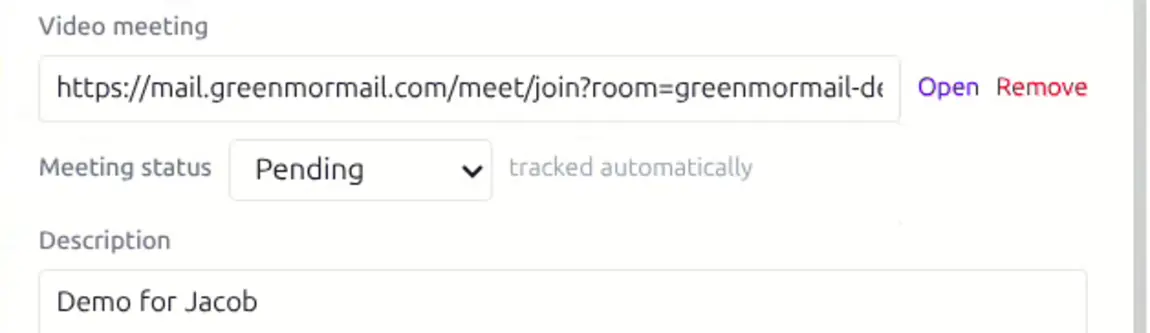
Fill in the event the way you always would — title, time, who is coming — and switch on the video meeting. The link appears in the form immediately, ready to go out with the invitation.
- Made while you create the event
- Open it to test, or remove it again
- Meeting status tracked automatically
Then It Lands In Their Mail
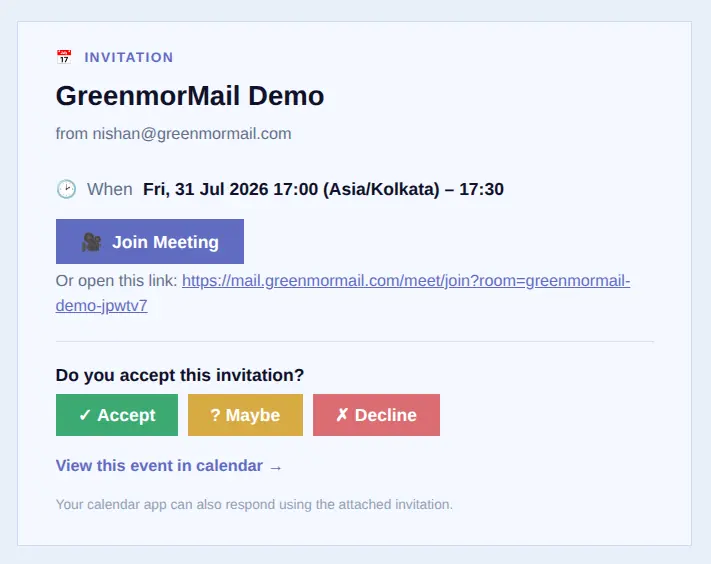
Your guests get a proper invitation: when it is, a Join Meeting button, the plain link underneath for anyone whose mail client strips buttons, and Accept, Maybe and Decline so you know who is actually coming. They do not need a GreenmorMail account to use any of it.
- One click to join
- No account, nothing to install
- RSVPs come back to your calendar
You Booked It, So You Run It
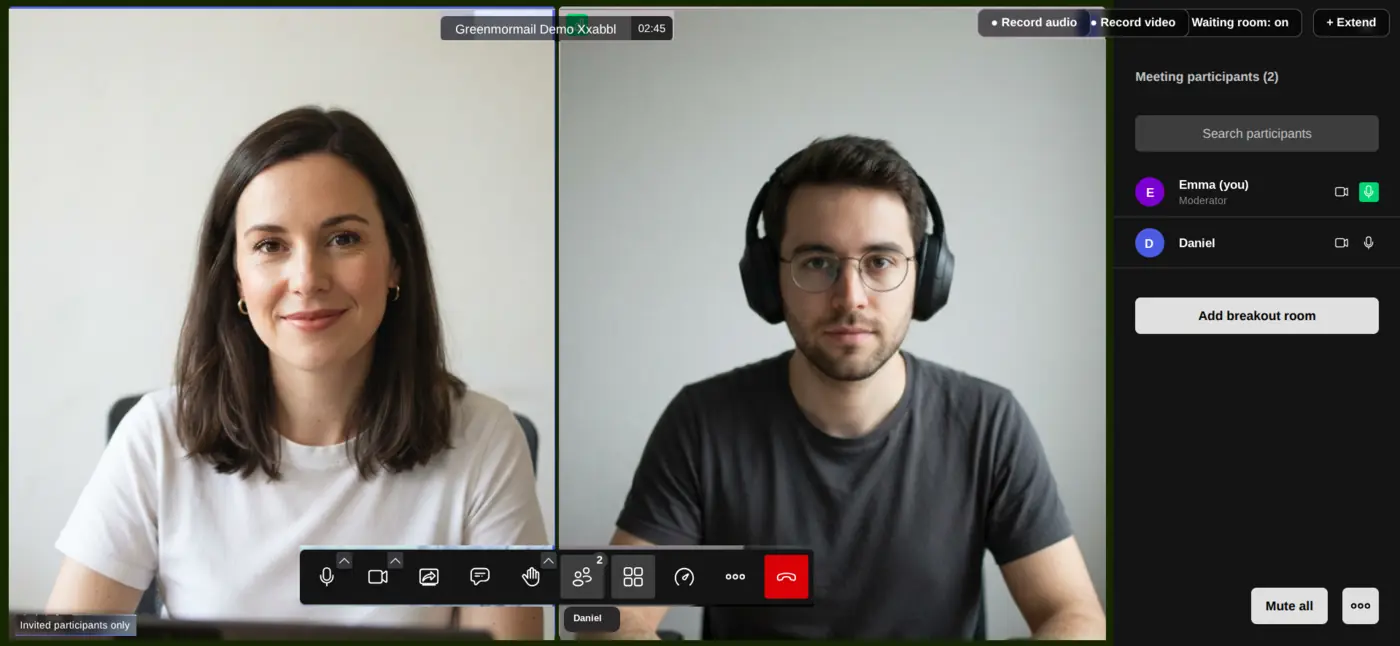
The organiser is the moderator. Everything you need to keep a call moving is on the same screen — who is here, their microphones and cameras, breakout rooms, and a chat that does not disappear when the call ends.
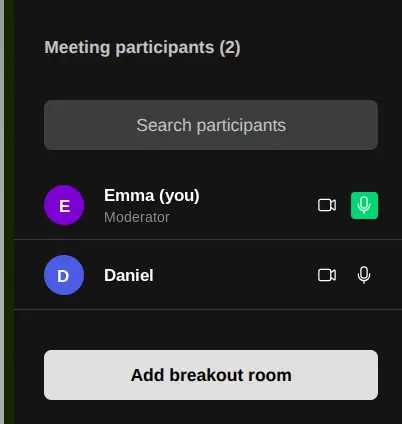
See Everyone, And Act On Any Of Them
The participants panel shows who has joined and who is muted, with the controls beside each name. Mute one person or the whole room, turn a camera off, or split the call into breakout rooms when a group needs to go away and talk on its own.
- Mute one person, or mute all
- Turn a participant’s camera off
- Breakout rooms for smaller groups

The Controls Are Where You Expect Them
Microphone and camera with their own device menus, screen share, chat, raise a hand, the participant list, and a tile view for when you want to see everybody at once rather than whoever is speaking.
- Pick your microphone and camera
- Raise a hand without interrupting
- Switch between speaker and tile view
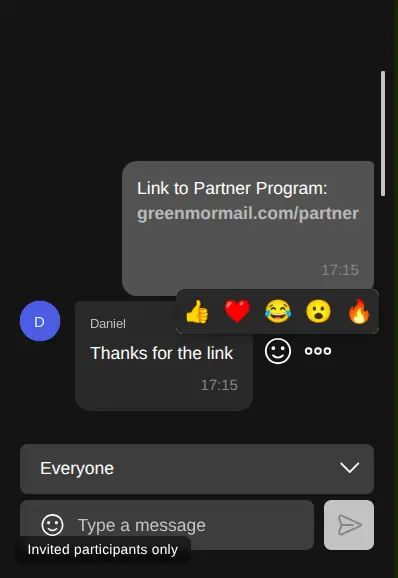
Chat Beside The Call, Publicly Or Privately
Drop a link in without interrupting whoever is speaking, react to what somebody said, or change the selector from Everyone to one person and send only to them — useful when you need to tell a colleague something the client should not read.
- Share links and notes mid-call
- Emoji reactions instead of talking over
- Send to everyone, or to one person
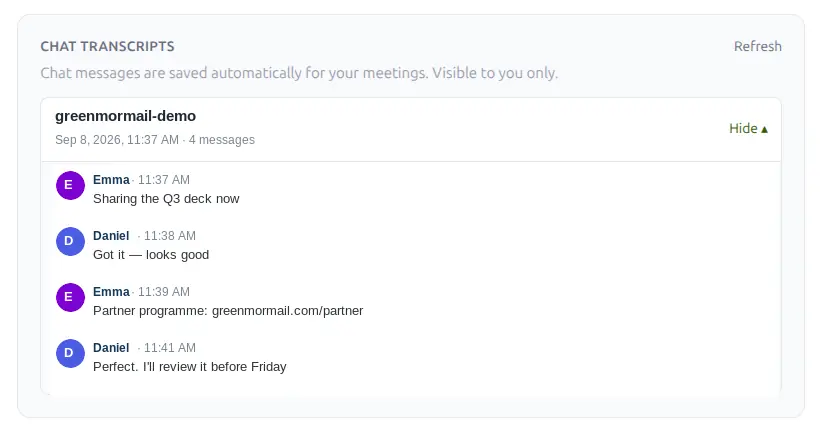
The Chat Is Still There Tomorrow
Everything typed into a meeting chat is kept for you afterwards, filed by room and date, so the link somebody pasted at 11:37 is still findable next week. They are your records: visible to you, not to the other people who were in the call.
- Saved automatically, per meeting
- Kept with the date and the room
- Visible to you only
Show The Thing Instead Of Describing It
Share one browser tab, a single application window, or your whole screen — and if what you are sharing has sound, you can send that too.
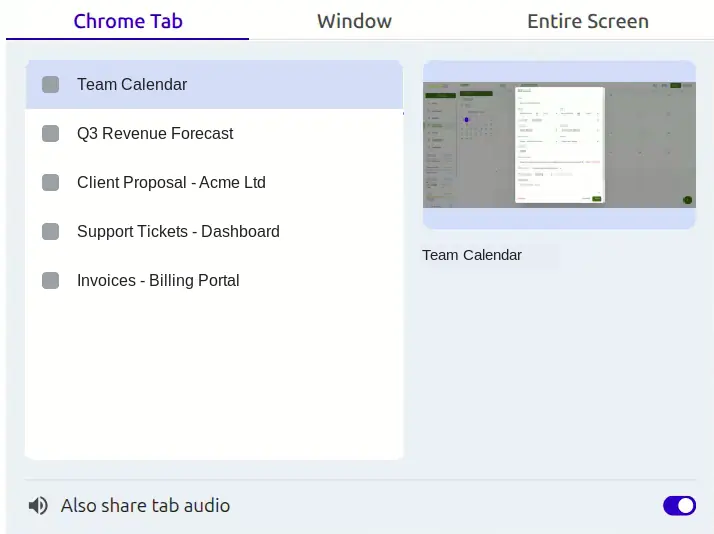
Pick Exactly What They See
Choosing a single tab or window rather than the whole screen is the safer habit — your inbox, your notifications and everything else stay private, and only the thing you meant to show goes out.
- One tab, one window, or everything
- Send the tab’s audio with it
- Stop sharing from the same bar
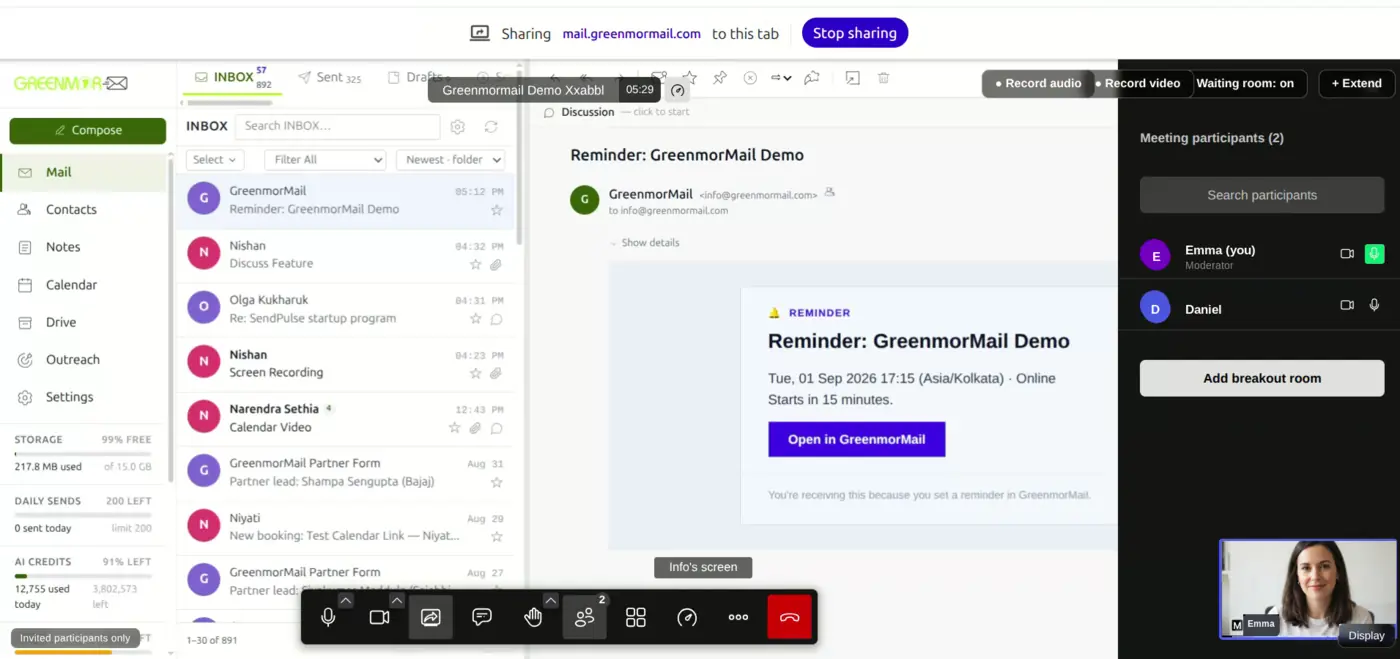
They See It Straight Away, And Still See You
What you picked appears for everyone in the room immediately, with your camera still in the corner so the conversation carries on rather than turning into a slideshow with a voice over it.
- No upload, no waiting
- Presenter stays on screen
- Anyone you allow can share in turn
Record It, And Find It In Your Own Drive
Record the audio, the video, or both. The part that matters is where it ends up: not on somebody else’s platform behind a share link, but in the Drive attached to your own mailbox.

Start It From The Top Bar — And Everybody Is Told
Recording is a button, not a setting buried in a menu. When it starts, every person in the room is shown a notice that the session is being recorded. Nobody is recorded without being told, which is the only decent way to do it and increasingly the only lawful one.
- Audio only, or audio and video
- Everyone in the room is notified
- Started and stopped by the organiser
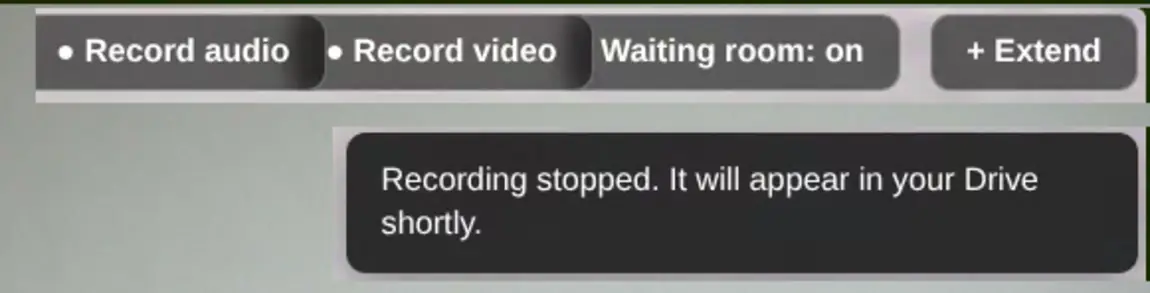
It Goes Straight Into Your Drive
Stop the recording and it is filed into the organiser’s Drive — the same 15 GB as the mailbox, in the same window. There is no separate recordings library to log into, no export step, and no link that expires. Share it the way you share any other file, or do not share it at all.
- Lands in the organiser’s Drive
- Removed from the meeting server once uploaded
- Share it like any other file, or keep it
A Link Is Not A Door Policy
Anyone who has the link can try the door. Whether it opens is a separate decision, and one you make when you create the meeting rather than in a panic thirty seconds after it starts.

Decide Who Gets In Before Anyone Arrives
Set “Who can join” to “Invited participants only” while you are creating the meeting, and the room is limited to the attendee list with everybody held until you admit them. It is set on the meeting itself, so it is already in force when the first person clicks the link — including before you have joined. Left open, anyone with the link walks in.
- Set on the invitation, not mid‑call
- Invited participants only, held until admitted
- In force before the organiser joins
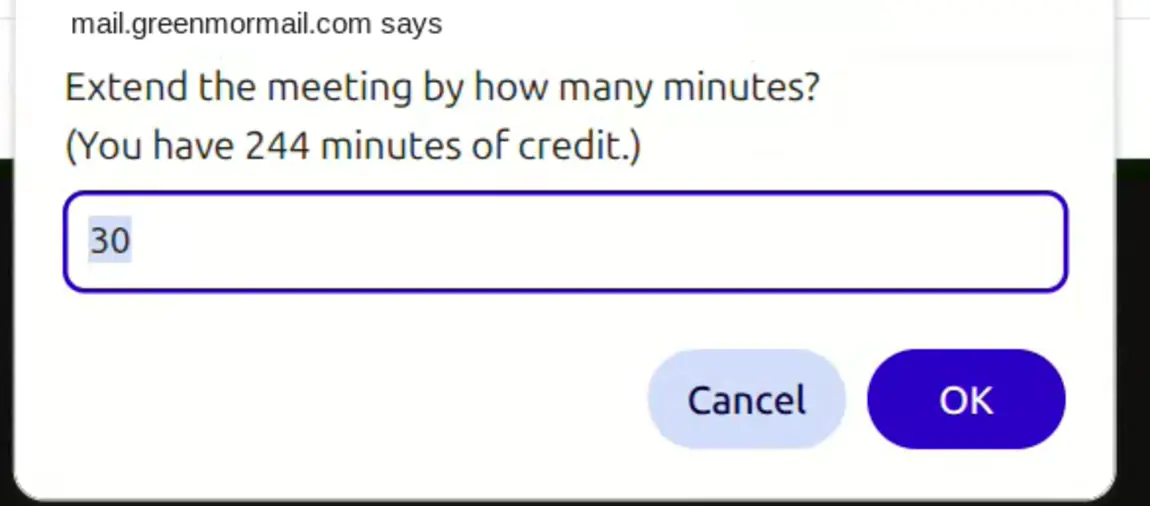
Running Over? Add Time Without Hanging Up
When a meeting is about to reach its end, extend it from inside the call. It tells you how much credit you have left before you commit, so the decision is an informed one rather than a surprise on next month’s bill.
- Extend without dropping the call
- Remaining credit shown first
- Nobody has to rejoin
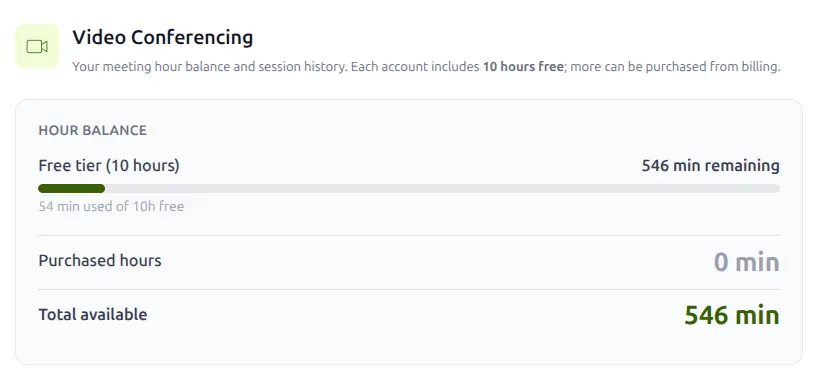
Ten Free Hours To Start, Then Hours You Buy
Video calling is a paid add-on. Every account starts with ten hours free so you can try it on real meetings; after that you buy hours from billing. The balance is on screen with your session history beside it, so there is no guessing — and purchased hours do not expire, so nothing you have paid for evaporates at the end of the month.
- 600 minutes free to start, per account
- Purchased hours never expire
- Balance and past sessions in Settings
Frequently Asked
Do the people I invite need an account or an app?
Neither. The invitation carries a Join button, and it opens the meeting in the browser they already have. They do not create a GreenmorMail account, they do not install anything, and they do not need a licence of their own. That applies to clients, candidates and suppliers as much as to your own team.
Is video calling an extra I have to pay for?
Yes. Video calling is a paid add-on, charged as meeting hours on top of your mailbox rather than bundled into it. Each account starts with ten hours free so you can try it on real meetings, and after that you buy hours from billing. What you never pay is a per-host conferencing licence — people who only ever attend cost nothing — and purchased hours do not expire, so time you have paid for is not lost at the end of the month.
Can I stop people joining before I get there?
Yes, and it turns on one setting on the invitation. When you create the meeting, set “Who can join” to “Invited participants only”. That limits the room to the people on the attendee list and holds them in a waiting room until you admit them, and it is in force from the moment the meeting is created — before you have joined — so being late costs you nothing and a forwarded link gets a stranger as far as the door and no further. Left on “Anyone with the link”, the room is open and people can be in it before you arrive.
Where do recordings go?
Into the Drive attached to the organiser’s own mailbox, sharing the same 15 GB as your mail, and the copy on the meeting server is removed once the upload finishes. There is no separate recordings portal to log into and no link that quietly expires. You can record audio only or audio and video, and everyone in the room is shown a notice when recording starts.
Can I share my screen, and can I share sound with it?
Yes to both. You can share a single browser tab, one application window, or your entire screen, and when you share a tab you can send its audio along with the picture — which is what you want for a demo or a video. Sharing one window rather than the whole screen keeps your inbox and your notifications out of the meeting.
Is the meeting chat saved anywhere?
Yes. Messages typed into a meeting chat are kept automatically, filed by room and date, so you can go back to a link or a number somebody pasted during the call. They are your own records and are visible to you, not to the other participants. This is the typed chat — GreenmorMail does not transcribe what was spoken.
What happens if a meeting runs over?
You extend it from inside the call, without anybody hanging up and rejoining. The prompt shows how much credit you have left before you confirm, so you are choosing with the number in front of you rather than finding out afterwards.
What do I actually need to run a meeting?
A browser and a GreenmorMail mailbox. The meeting runs in the same window as your mail and calendar, on the same login, so there is nothing to roll out to your team and nothing for IT to approve. Your guests need only the link.
The Rest Of The Suite
Video calling shares the window with all of these — the same login, the same contacts and the same 15 GB.
Stop Pasting Meeting Links
Start a 14-day free trial, put a video meeting on your next invitation, and watch somebody join it from their inbox without installing a thing.