
Email security for the one account that unlocks everything else
Reset any account you own and the link lands in your inbox. That makes email the one account worth protecting properly — so GreenmorMail layers it: a second factor at sign-in, OpenPGP encryption on the message itself, a spam filter that scores every delivery, and a master password on the folders you would rather nobody read over your shoulder.
- Two-factor in about a minute
- No ads, no profiling
- Nothing extra to buy
Every layer, in a little over two minutes
Turning on two-factor, making it compulsory across a domain, switching on encrypted mail and watching a message encrypt and decrypt in the browser, then locking and hiding a folder — every screen here is the real product.
2:16 · no sign-up needed to watch
A password on its own stopped being enough a long time ago
Not because people choose bad passwords, but because a password is a single secret that can be guessed, reused, phished or leaked by somebody else’s breach — and you would never know.
It is the master key
Your bank, your domain registrar, your accounting software, your payment gateway. Every one of them will email a reset link to whoever is holding the mailbox. Lose the mailbox and you lose the lot, in the order the attacker chooses.
Reuse is the usual way in
Most break-ins are not clever. A password you used on some forum in 2019 turns up in a dump, somebody tries it against your email, and it works. A second factor makes that attempt fail even when the password is correct.
Some mail should not be readable in transit
Contracts, payroll, board papers. Ordinary email is delivered in the clear between servers. Encryption on the message itself means what travels is ciphertext, whatever it passes through on the way.
And some of it is nobody’s business
An open laptop in a meeting room, a screen share that goes one folder too far, a shared desk. Signing in should not mean every folder is on display to whoever is standing behind you.
What is actually protecting the mailbox
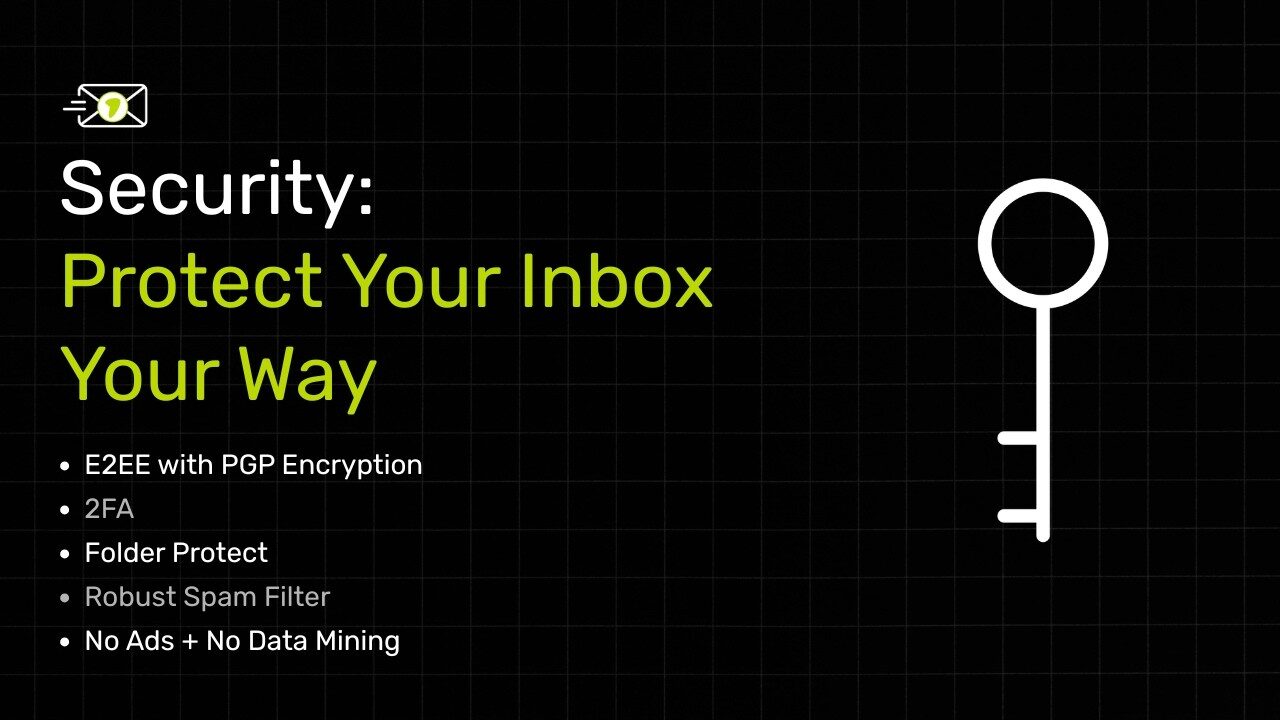
Four independent things, each covering a different failure. None of them is an add-on, and none of them costs extra.
Two-factor at sign-in
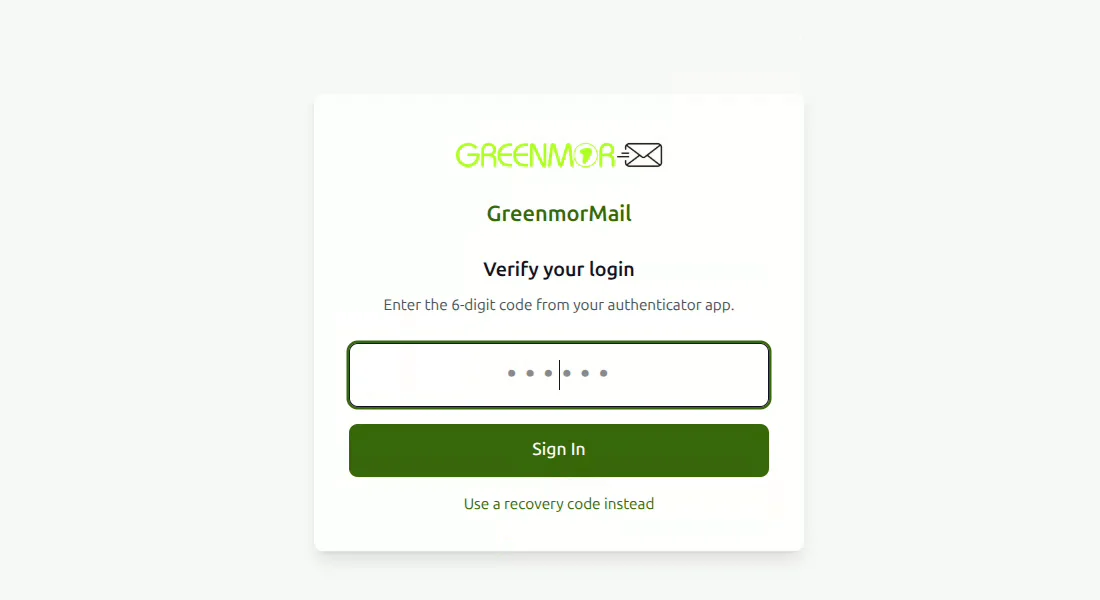
A six-digit code from any authenticator app, or a one-time code by email, asked for on every sign-in. Recovery codes for the day the phone goes missing. If you run the domain you can make it mandatory for a mailbox rather than hoping everybody gets round to it.
Encrypted mail with OpenPGP
One switch turns it on for a mailbox, and an administrator can enable it across a whole domain. Encryption happens in your browser, before the message leaves your machine, and your key is wrapped with a passphrase that only you type in.
Spam scored on arrival
Every message is checked as it lands — what it contains, the sending server’s reputation, and whether SPF, DKIM and DMARC say it really came from where it claims. What fails goes to Junk, and the filter learns each time you correct it.
Folder protection
A second password inside the mailbox. Protect a folder and it asks before it opens; hide one and it disappears from the list entirely, even to somebody already signed in as you.
Two-factor authentication, set up in about a minute
Nothing to buy and no hardware token to lose. Any authenticator app you already use will do — Google Authenticator, Microsoft Authenticator, Authy, 1Password, Duo.
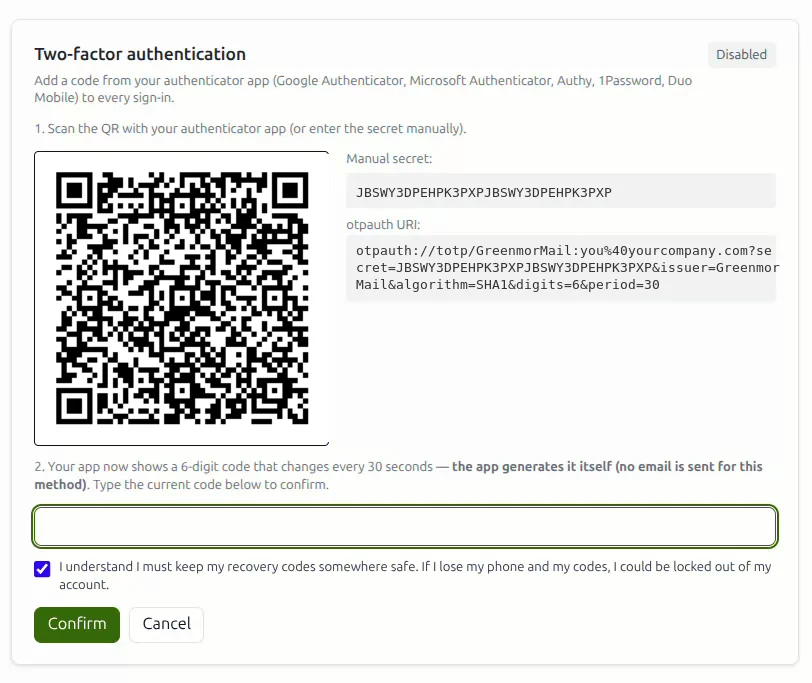
Scan the code, type the six digits back
Open Settings, scan the QR with your authenticator app, and enter the code it shows you to confirm. The app generates the codes itself on a thirty-second cycle — nothing is emailed to you for this method, so it keeps working even if you cannot get into your mail.
Prefer not to scan? The same secret is printed beside the code for manual entry.
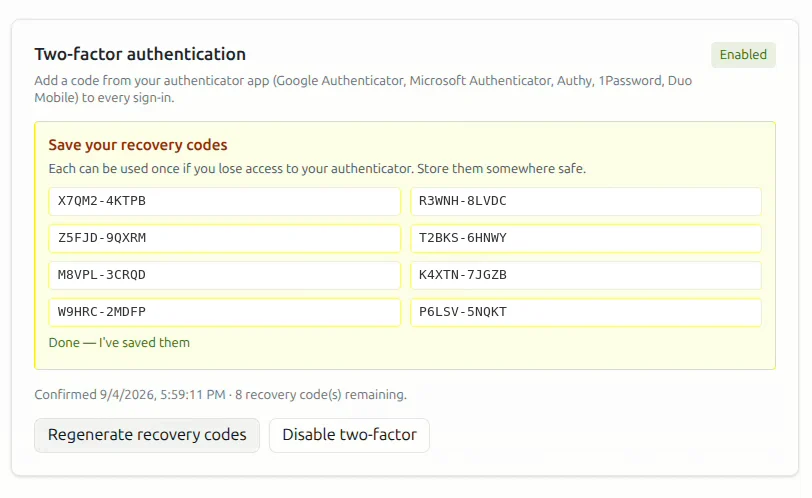
Save the recovery codes
Eight single-use codes appear the moment two-factor is switched on. Each one gets you back in if you lose the phone, and each works exactly once. Keep them somewhere that is not your mailbox — a password manager, or printed and filed.
You can regenerate the set at any time, which immediately invalidates the old one.
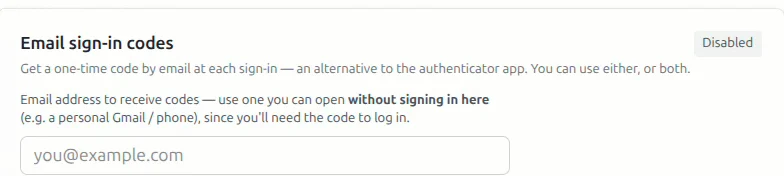
Or take the code by email instead
An authenticator app is the stronger option, but it is not the only one. Email sign-in codes send a one-time code to an address you can open without signing in here — a personal Gmail or a phone. Use either, or both together.
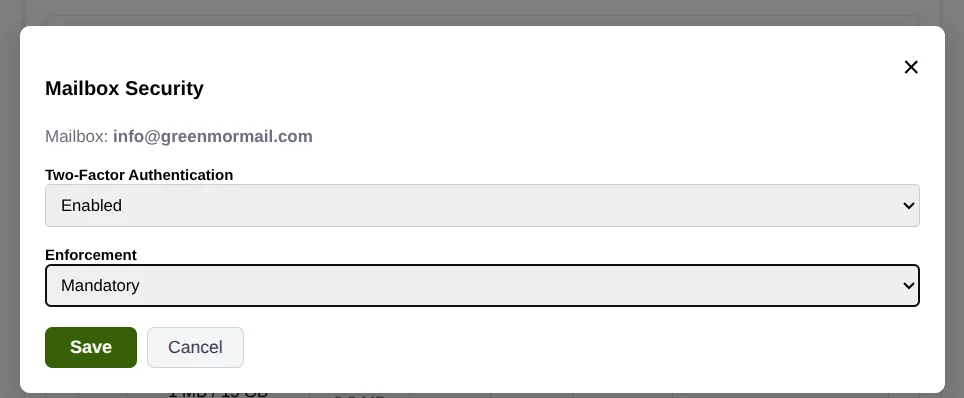
Make it compulsory across the domain
Security that depends on everyone remembering is not security. From the admin console you can switch a mailbox’s two-factor to Mandatory, and it is asked for at that person’s very next sign-in — no announcement, no chasing.
Encrypted mail, using OpenPGP
Ordinary email is handed from server to server in the clear. Encrypted mail closes that: the message is encrypted in your browser before it leaves, and stays private to you and anyone else who also uses encryption.
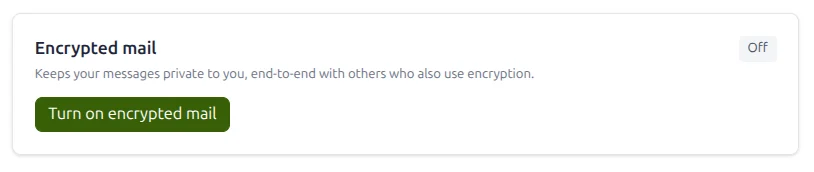
One switch to turn it on
There is no key server to configure and no plugin to install. Switch on encrypted mail and GreenmorMail generates your OpenPGP key pair in the browser and publishes the public half so people can write to you.
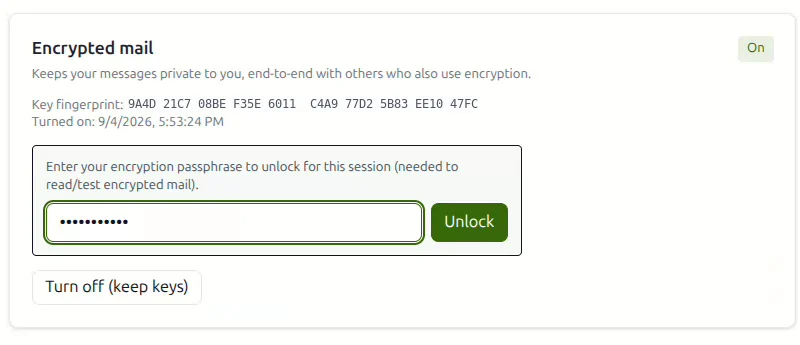
Your key is wrapped with your passphrase
You choose a passphrase when the key is created, and you type it once per session to unlock reading and writing encrypted mail. It is not your mailbox password, and it never leaves your browser.
The fingerprint shown beside the switch is the public identifier of your key — safe to share, and how somebody verifies they have the right one.
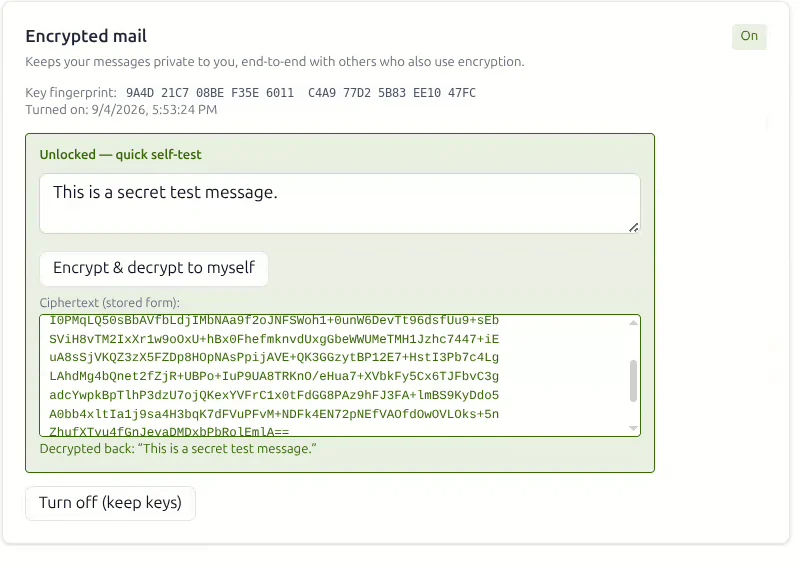
See it happen, in your own browser
There is a self-test built into the settings page, and it is worth running once just to watch it work. Type a sentence, press the button, and you get back the PGP ciphertext that would actually travel — followed by the same sentence decrypted again at this end.
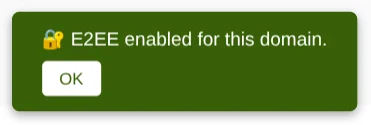
Or switch it on for the whole domain
Administrators can enable encrypted mail for every mailbox on a domain in one move, so a team does not have to be talked through it individually.
Spam stops at the door — and there are no ads behind it
Filtering and advertising are the two places where a free mailbox usually costs you something. Here they do not.
Every message is scored as it arrives
Before anything reaches your inbox it is examined: the content itself, the reputation of the server that sent it, and whether SPF, DKIM and DMARC agree that it really came from the domain it claims. Messages that fail go to Junk rather than to you.
It learns from your corrections
Mark something as spam, or rescue something that should not have been filtered, and that feedback trains the filter for your mailbox. The more you correct it, the closer it gets to your own idea of what counts as junk.
Viruses stopped before delivery
Attachments are scanned on the way in and on the way out, including files you upload to Drive, so an infected document never lands in a colleague’s mailbox.
No ads. Not one.
Your inbox is not advertising space. Nothing in your mail is read to target you, nothing is sold on, and there is no profile being assembled in the background. You pay for the product, so you are not the product.
Folder protection, for the things that are nobody else’s business
Two-factor stops somebody else signing in. This is the layer for when they are already looking at your screen — a shared desk, a screen share, an open laptop in a meeting.
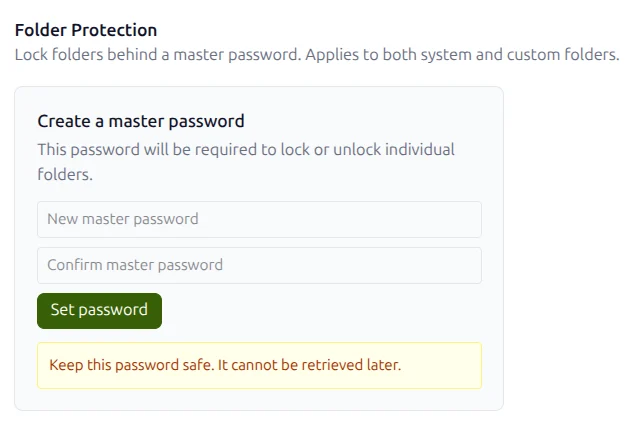
Set one master password
A single password, separate from the one you sign in with, that governs every locked folder. Set it once in Settings and it is what you will be asked for from then on.
Keep it somewhere safe — it cannot be recovered, by you or by us.
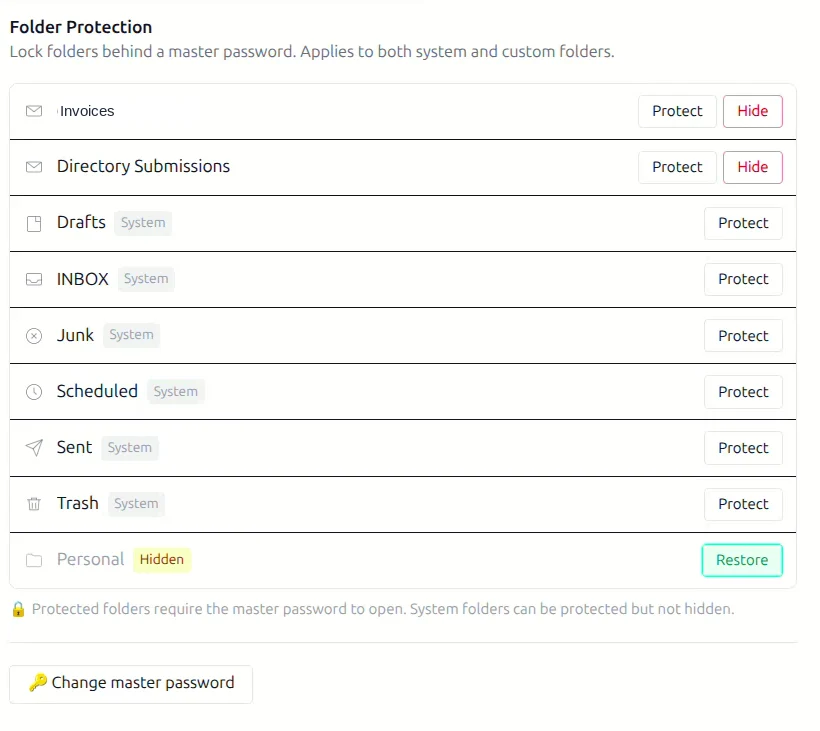
Protect a folder, or hide it completely
Two different things, and the difference matters. Protect leaves the folder visible but asks for the master password before it opens. Hide takes it out of the folder list altogether — somebody looking at your mailbox has no reason to think it is there at all, until you restore it.
System folders such as Inbox, Sent and Trash can be protected but not hidden.
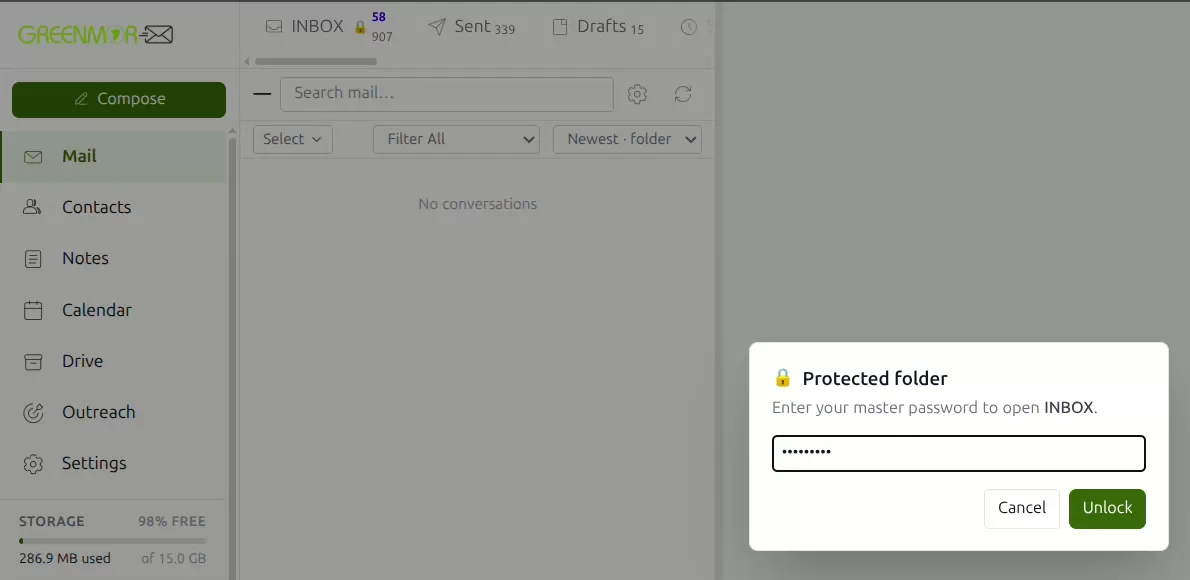
Locked really does mean empty
Open a protected folder and there is nothing to read. The list is empty, the folder carries a padlock, and the mail only appears once the master password is entered — then everything is back exactly as it was.
Frequently asked
Which authenticator apps work?
Any app that supports standard time-based one-time passwords, which is effectively all of them — Google Authenticator, Microsoft Authenticator, Authy, 1Password and Duo Mobile are the ones people usually have. You can also enter the secret by hand instead of scanning the code.
What happens if I lose my phone?
Use one of the eight recovery codes you saved when you turned two-factor on. Each works once. If you have also enabled email sign-in codes, you can take a one-time code at that address instead. If both are gone, your domain administrator can reset two-factor for your mailbox.
Can I make two-factor compulsory for my team?
Yes. In the admin console, open the mailbox, set Two-Factor Authentication to Enabled and Enforcement to Mandatory. That person is asked to set it up at their next sign-in and cannot skip past it.
Do the people I write to need encryption too?
For a message to be encrypted end-to-end, yes — both sides need it, because your mail is encrypted to their public key. Mail to everybody else is sent normally. Encryption is per message, so turning it on does not stop you emailing the rest of the world.
What happens if I forget my encryption passphrase?
The passphrase unlocks your key for the session and is never sent to us, so nobody can type it in on your behalf. Store it in your password manager alongside your recovery codes. You can turn encrypted mail off and keep your existing keys, so already-encrypted mail stays readable once you unlock again.
Is folder protection the same as my mailbox password?
No, it is a separate master password used only for locking and unlocking folders. That is the point — somebody who is already signed in as you, on your own machine, still cannot open a protected folder without it. It cannot be recovered, so keep a copy somewhere safe.
What is the difference between protecting a folder and hiding it?
A protected folder is still listed, and asks for the master password when you open it. A hidden folder is not listed at all, so there is nothing on screen to suggest it exists. System folders like Inbox, Sent and Trash can be protected but not hidden.
Does any of this cost extra?
No. Two-factor authentication, encrypted mail, spam filtering, virus scanning and folder protection are part of every GreenmorMail mailbox, with nothing to add to the bill and nothing to enable per user. All of it is available during the 14-day free trial.
The rest of the suite
Security runs underneath all of it. These share the same login, the same contacts and the same 15 GB.
Turn on two-factor before you do anything else
Start a 14-day free trial, spend a minute in Settings with your authenticator app, and the most important account you own stops depending on a single password.