
Calendar and scheduling, built into your inbox
Your day is not only email. Some things need a reply, some need a meeting, and some just need a time on the calendar. GreenmorMail Calendar sits in the same window as your mail, with the same login and the same contacts — so you go from reading a message to a scheduled meeting without changing tools, and share a booking link instead of trading emails about who is free when.
- Day, week, month & agenda
- Booking links included
- Tasks in the same view
The whole calendar in two minutes
Building an event from an empty slot, setting it to repeat with a reminder, sharing a booking link and letting somebody else pick a time, switching between the four views, colour-coding by category and keeping tasks beside the meetings — every screen here is the real product.
2:02 · no sign-up needed to watch
A separate calendar is a second thing to keep in sync
Most small teams end up with mail in one place and a calendar somewhere else, and then spend their time copying between the two. Every invitation has to be re-typed, every contact exists twice, and the answer to “when are you free?” lives in a tab nobody has open.
One login, one window
Calendar is a tab in the same app as Mail, Contacts, Notes and Drive. Nothing to connect, nothing to authorise, no sync to break at the worst moment. Your contacts are already there when you add people to a meeting.
One timezone, set once
Your timezone comes from Preferences and applies across mail and calendar together, so a meeting reads the same everywhere in the product. Each event also stores the zone it was created in, which is what keeps travel from quietly shifting things.
Nothing extra to buy
Calendar, booking links, tasks and reminders are part of every mailbox. There is no calendar add-on, no per-seat scheduling tool and no upgrade to reach the parts that matter.
Guests need no account
People you invite get a normal invitation in their own inbox and reply from there. Anyone booking through your link just picks a slot on a web page. Neither has to sign up for anything.
Look at it however the day demands
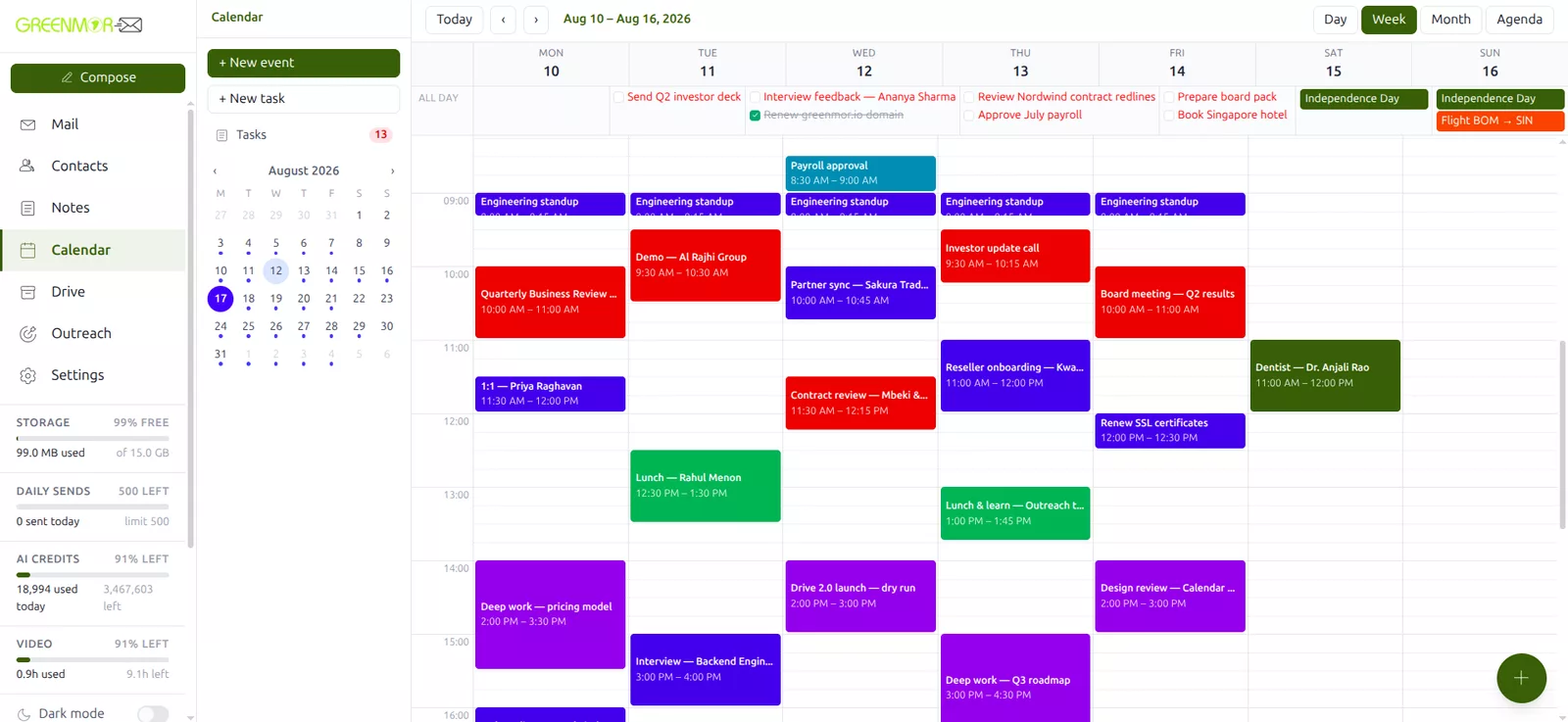
The same calendar, read four ways. Switch with one click, and Today is always one more click away. Whichever you use most becomes the one that opens by default — and phones can start on a different one.
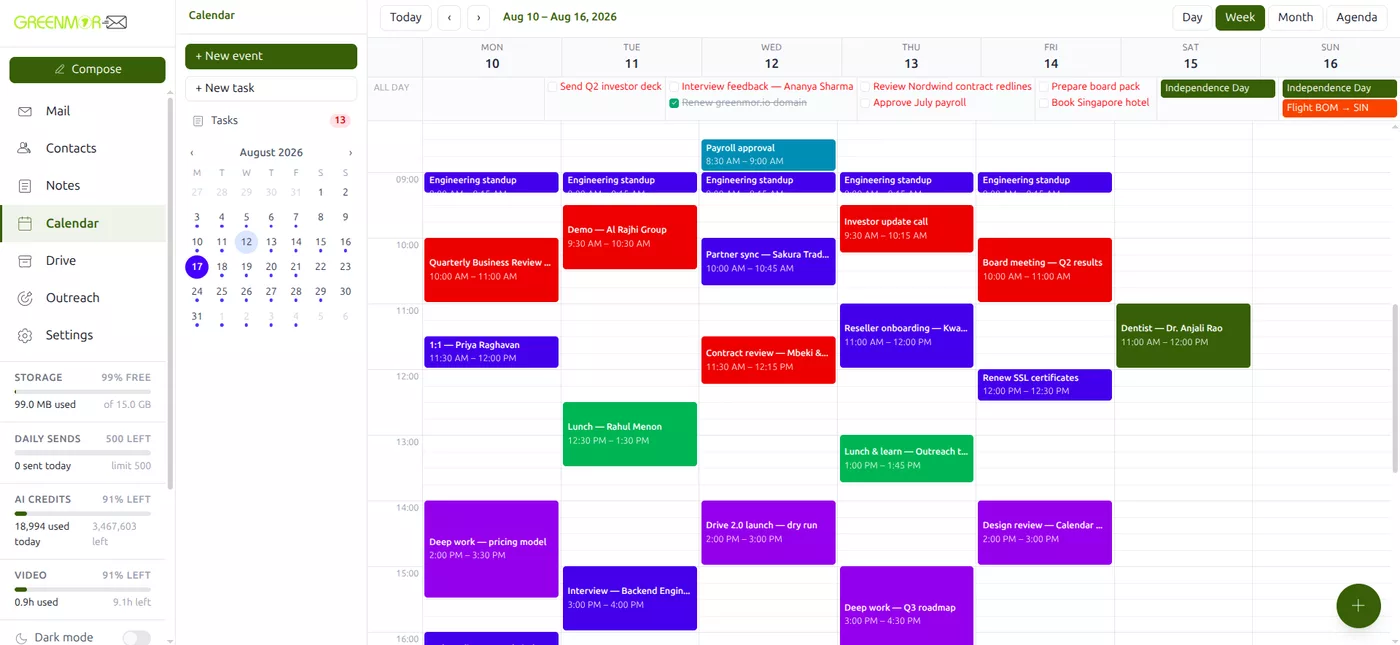
Week — for planning
The default, and the one most people live in. Seven columns, the all-day strip along the top for tasks and whole-day events, and the shape of the week visible at a glance: where the meetings cluster, where the deep-work blocks survived, what is left.
Your week can start on Monday or Sunday — it is a setting, not a default you have to live with.
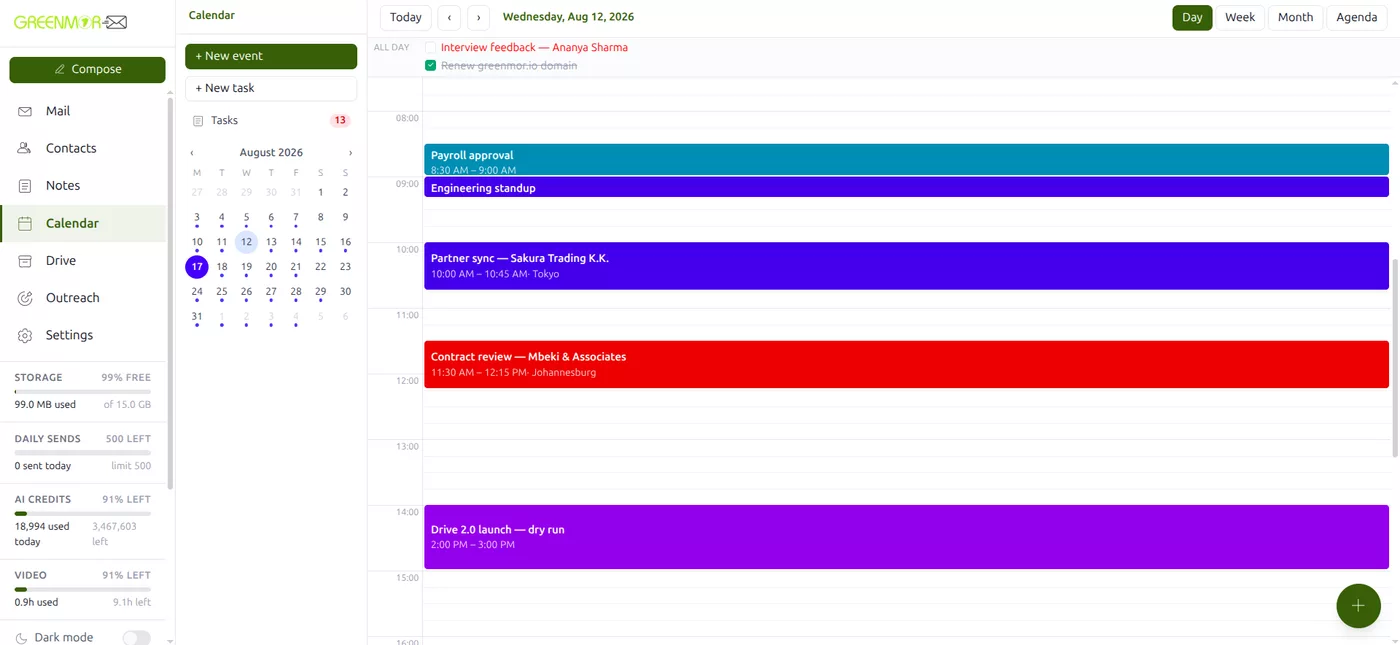
Day — for the packed ones
One day across the whole width, so back-to-back meetings stop overlapping into an unreadable stack. Useful the morning of a heavy day, when what you need is the order of things and the gaps between them.
Grid granularity is yours: 15, 30 or 60-minute slots.
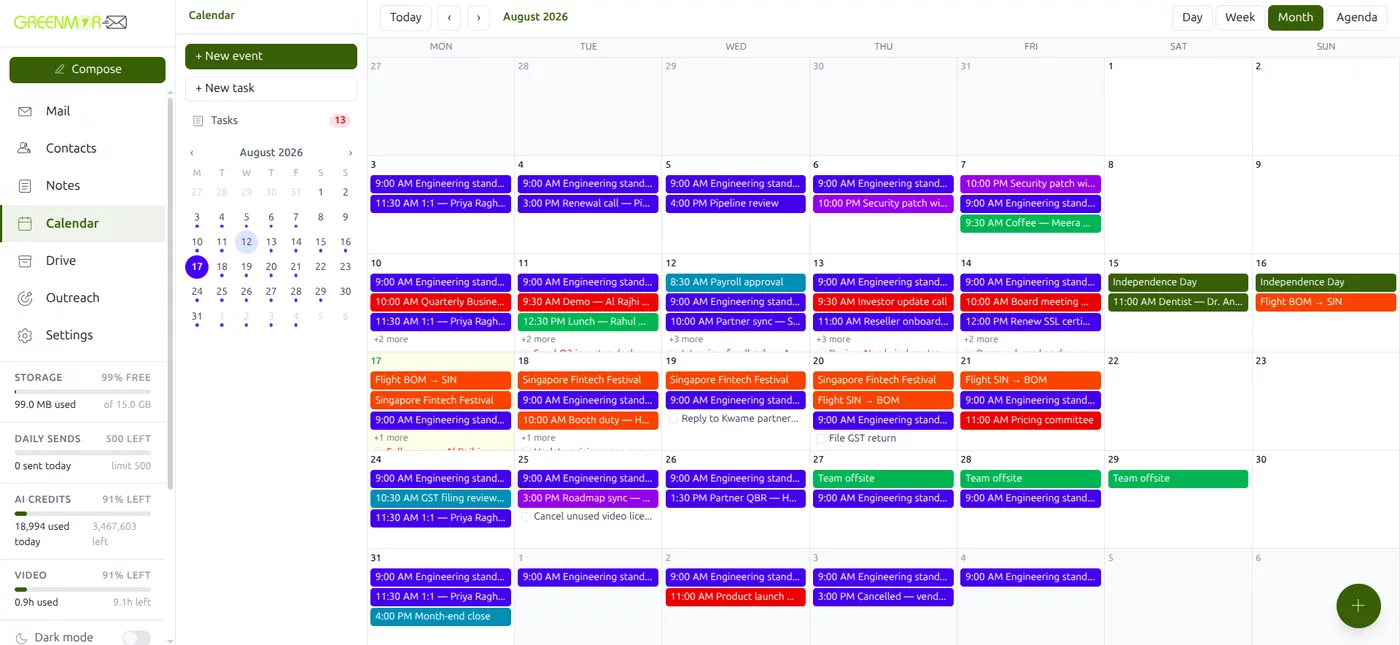
Month — for the wider picture
The whole month at once. This is where recurring commitments and travel become obvious, and where you notice that the week you were about to promise to somebody is already full.
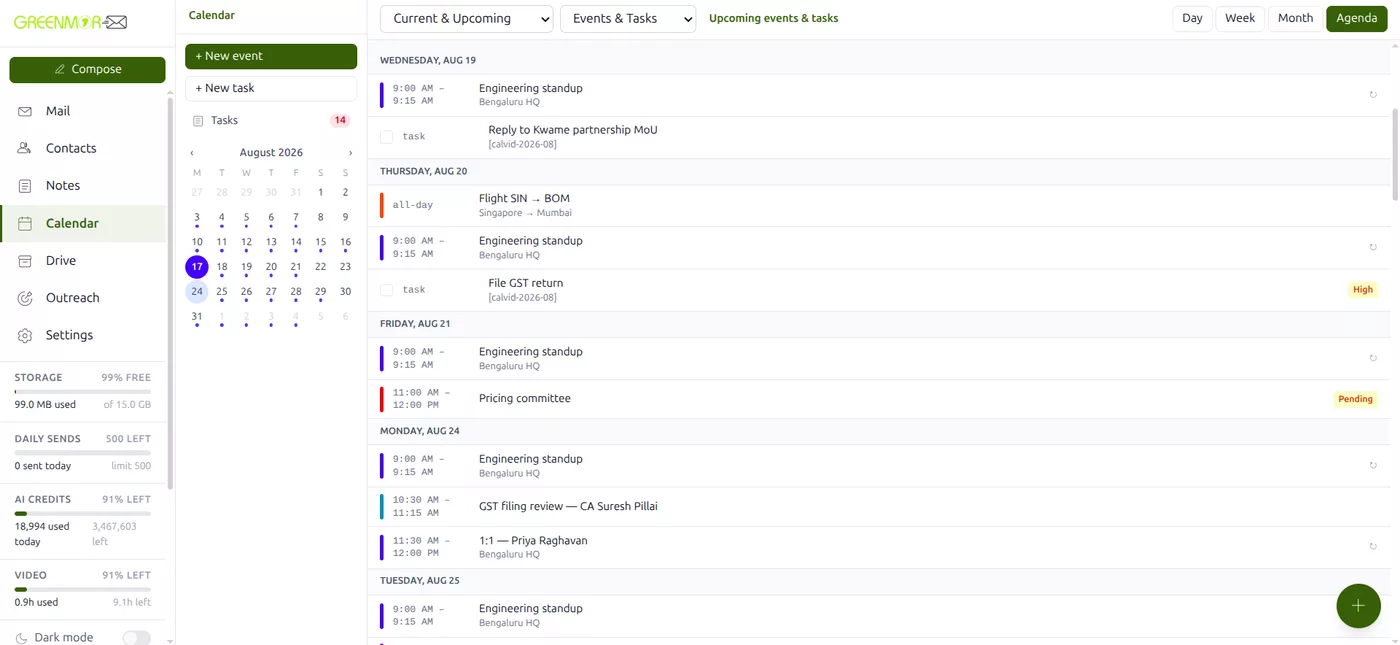
Agenda — a plain list
Everything upcoming in date order, with no grid to read. Filter it down to events only, tasks only, or both together — which is the fastest way to answer “what is actually left this week?” without counting boxes.
A title and a time. Everything else is optional.
Click an empty slot and the form opens with the time already filled in from where you clicked. Save it there and you are done — or open up the details when the meeting needs them.
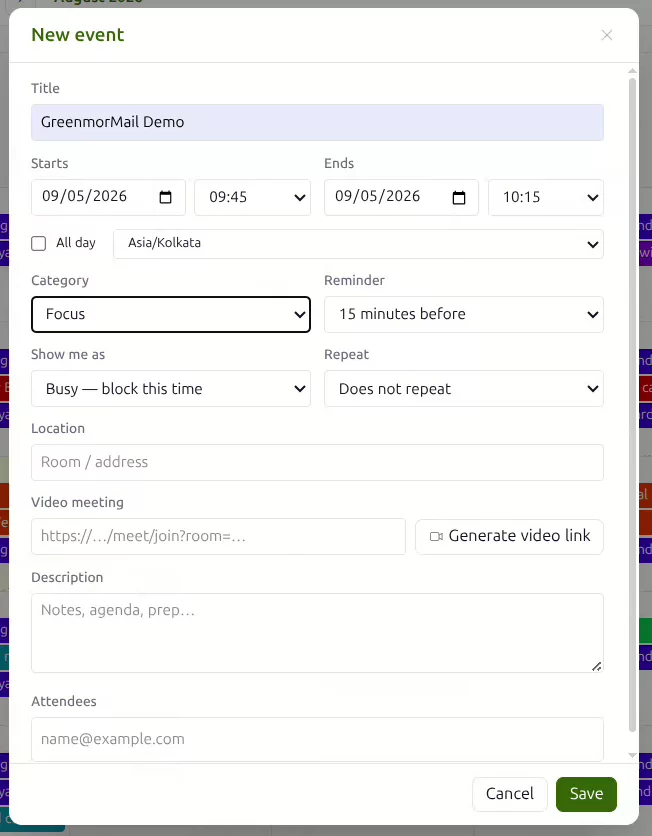
Everything on one form
No wizard and no second screen. Title, start and end, all-day, timezone, category, reminder, how you show to others, repeat, location, a video meeting link, a description and attendees — all of it in one place, all of it optional except the title and the time.
Invite people by typing an address; your contacts autocomplete as you go.
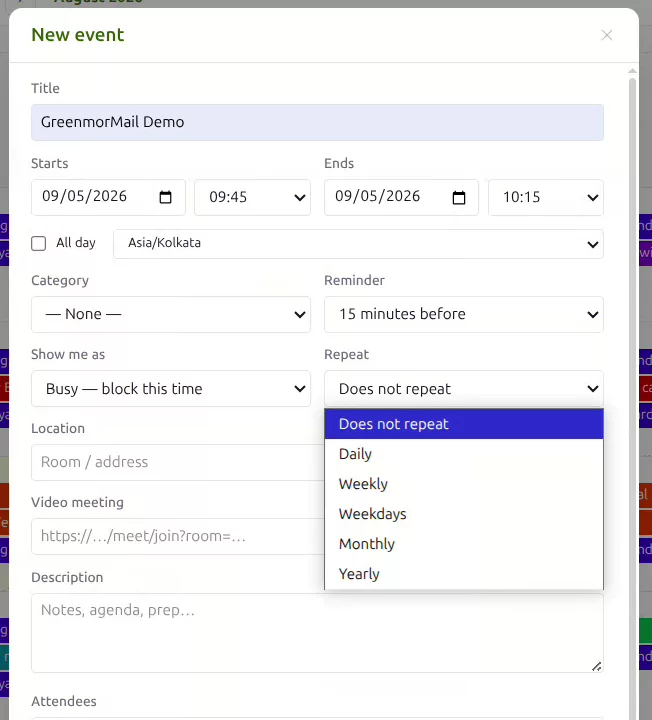
Make it repeat
Daily, weekly, weekdays only, monthly or yearly. The standing Monday one-to-one, the weekday stand-up, the monthly board meeting — created once and then simply there, in every view, for as long as it runs.
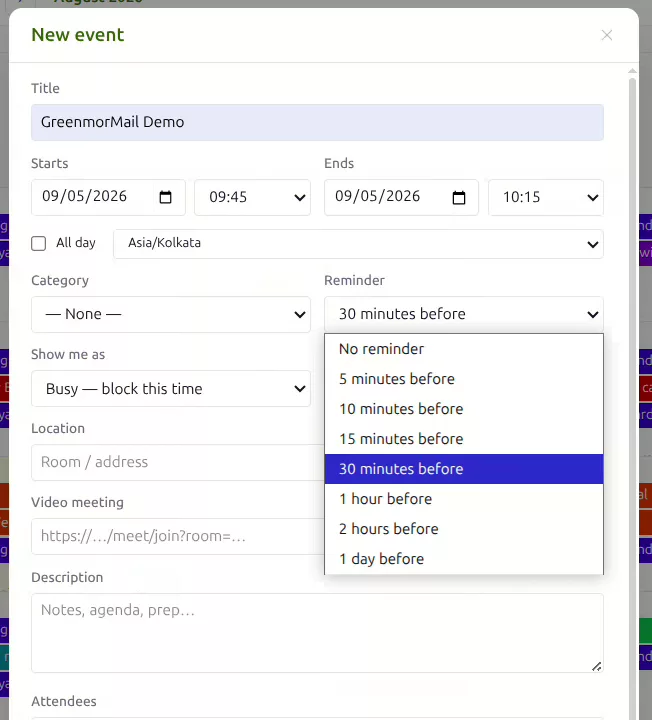
Be reminded, properly
Five, ten, fifteen or thirty minutes, an hour, two hours, or a day before. The reminder arrives as a browser notification on every device you have signed in on, and as an email to yourself — because the notification is the fast one and the email is the one that still works when the browser is closed.
Set a default reminder once in settings and every new event inherits it.
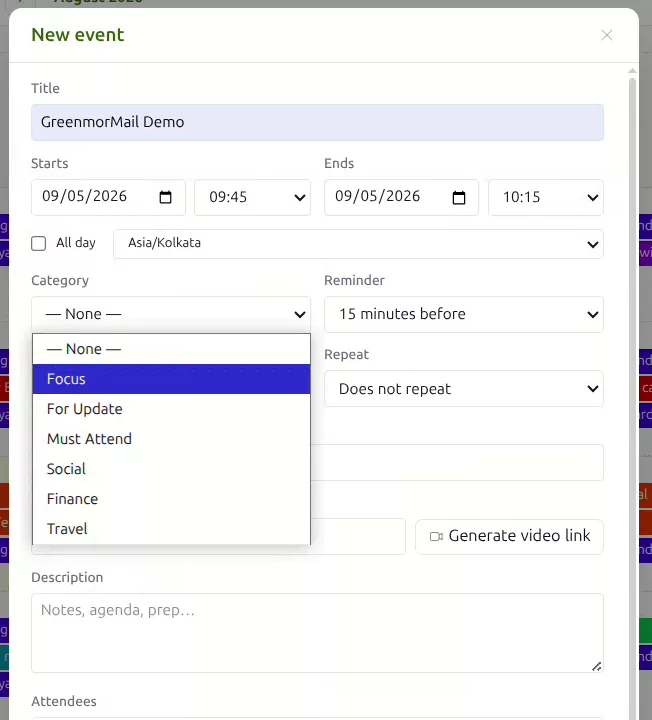
Say what kind of thing it is
Pick a category and the event takes that colour everywhere. Must attend in red and focus in purple do more for a crowded week than any amount of reading — you can see the shape of the day before you have read a single title.
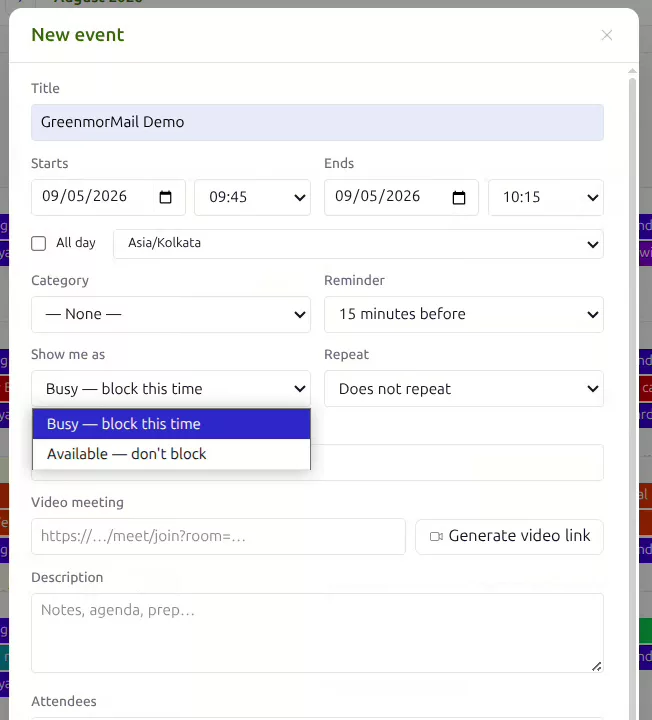
Busy, or only pencilled in
Every event is either busy — block this time or available — don’t block. It is the difference between a commitment and a note to yourself, and it is what your booking link reads when it decides which slots to offer strangers.
New events are busy by default. You can flip that default in settings.
Your colours, your words
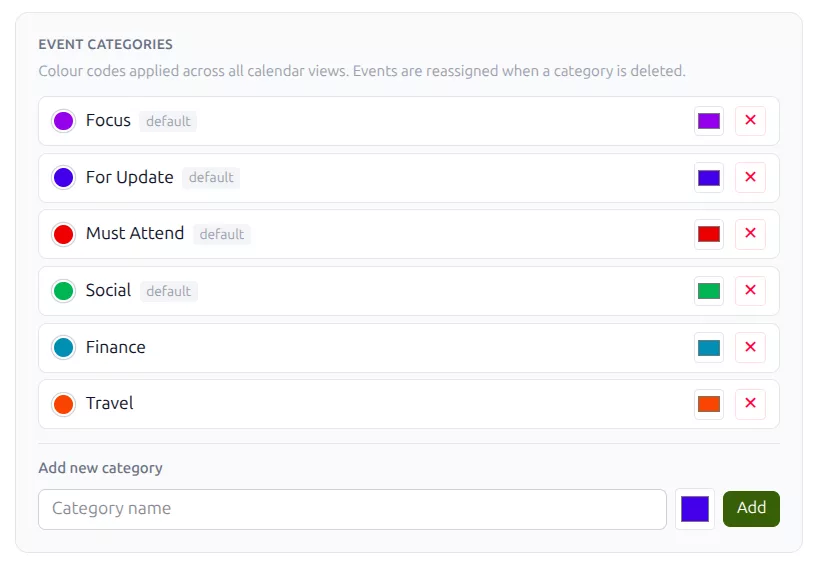
Categories are not a fixed list you have to bend your work into. Add the ones your business actually uses, give each a colour, and delete the ones you never touch — events on a deleted category are reassigned, never lost.
The colour follows the event through day, week, month and agenda, so the coding you set up once keeps working in every view. If you would rather colour by calendar than by category, that is a single setting.
Four categories are there from the start. The two in this screenshot — Finance and Travel — were added in a few seconds.
Stop emailing about times
Four messages to agree half an hour is normal and completely avoidable. Make a booking link once, put it in your signature or on your website, and let people take a slot that is genuinely free. It is part of the mailbox — not a scheduling tool you subscribe to separately.
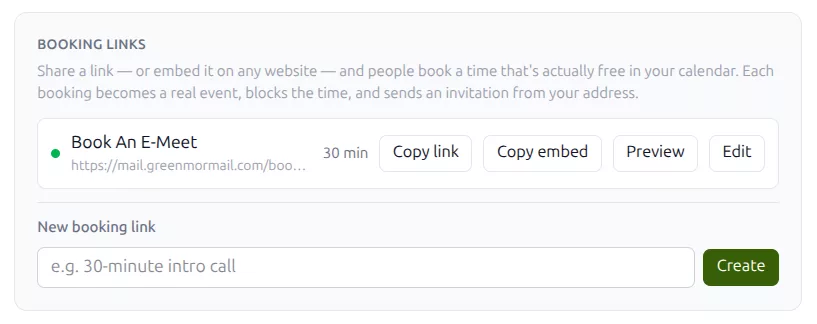
Make it once
Name it, set how long the meeting runs, and you have a link. Copy it into an email signature, or copy the embed code and drop the whole booking page into your own website. Make as many as you need — a short intro call and a long review are different links.
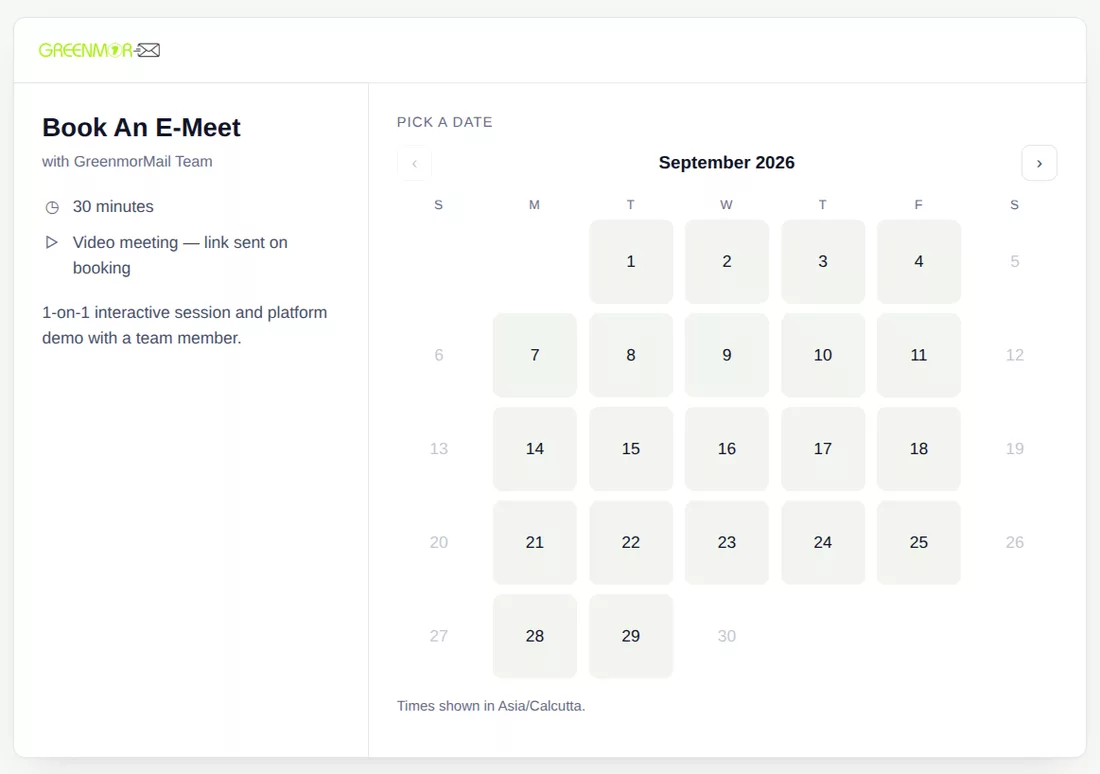
They pick a slot that is actually free
The page only offers time you really have. It works from your working hours and the slot size you set, then removes anything already blocked — every event marked busy, plus any slot somebody else is midway through booking. It respects a minimum notice period, buffers either side of a meeting, and a daily cap, so nobody books you into the next ten minutes or fills a whole Tuesday.
What they pick is not a note in a separate system — it is written into your calendar as an ordinary event. That is exactly what makes it block the time, show up in every view, and stop the next visitor being offered the same slot. It can carry a video meeting room, and whoever booked gets a standard calendar invitation from your address.
Times are shown in the visitor’s own timezone, so there is no arithmetic and no confusion.
The to-dos live here too
A deadline is not a meeting, but it still belongs in the week you are looking at. Tasks sit in the same calendar as the events — along the all-day strip, in the agenda list, and in their own panel — so the work and the time it has to happen in are on one screen.
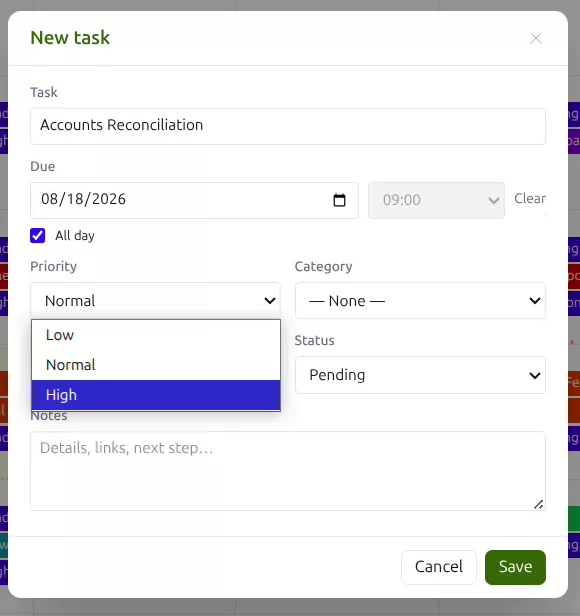
A due date and a priority
Give a task a title and, if it has one, a due date — a whole day or a particular time. Add a priority of low, normal or high, the same categories your events use, a status and any notes. A task with no date at all is fine; it waits in the list until it matters.
Tasks take reminders too, through the same notification and email as events.

Tick it off where you can see it
Each task shows a tick box on the day it is due, right above the meetings competing for the same hours. Complete it in place. Anything overdue keeps showing up rather than quietly sliding into the past — which is the entire point of putting it on a calendar.
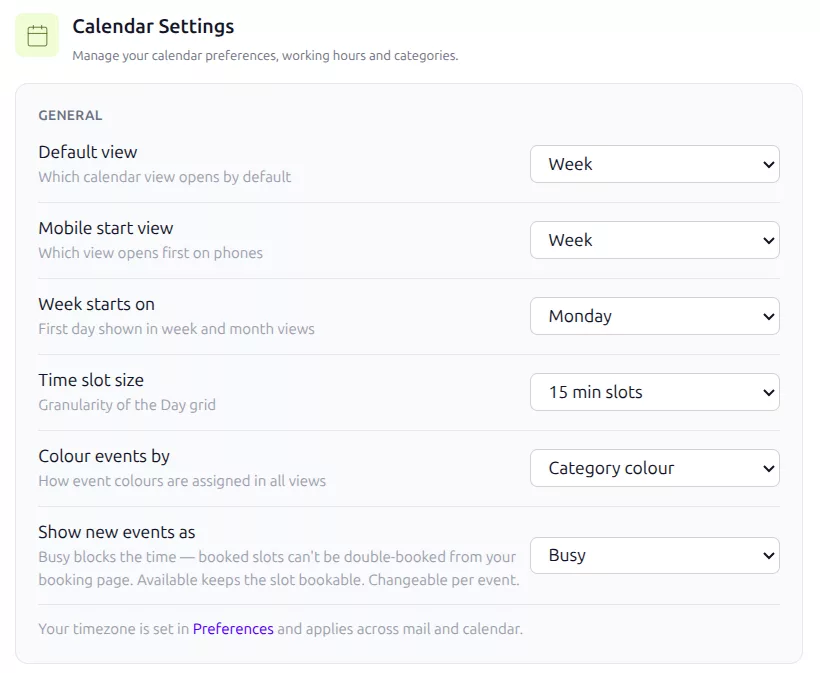
Set it up once and forget it
A handful of settings, all in one place, none of which you should ever have to think about twice.
- Default view — which one opens when you click Calendar
- Mobile start view — phones can open on something different
- Week starts on — Monday or Sunday, in week and month
- Time slot size — 15, 30 or 60-minute granularity
- Colour events by — category, or the calendar they belong to
- Show new events as — busy or available, changeable per event
Your timezone is set once in Preferences and applies to mail and calendar together.
Frequently asked
Is Calendar an extra I have to pay for?
No. Calendar, booking links, tasks and reminders are part of every GreenmorMail mailbox, with nothing to add to the bill and nothing to switch on per user. All of it is available during the 14-day free trial.
Do the people I invite need a GreenmorMail account?
No. They get an ordinary calendar invitation in whatever inbox they already use, and can accept, say maybe or decline straight from the email. Their own calendar app can respond to the attached invitation instead if they prefer. The same goes for booking — anyone with the link can take a slot without signing up for anything.
How do reminders actually reach me?
Two ways at once. A browser notification goes to every device where you have signed in and allowed notifications, and an email is sent to you as well. The notification is the fast one; the email is the one that still arrives when the browser is shut. You choose the lead time per event, from five minutes to a day, or set a default for everything.
Will a booking link ever double-book me?
It should not. The page works out free time from your working hours and slot size, then removes every event marked as busy and every slot somebody else is part-way through booking. It also honours a minimum notice period, buffers either side of a meeting, and a daily limit. Because a confirmed booking is written into your calendar as a real event, the next visitor is never offered that slot.
Can I put the booking page on my own website?
Yes. Every booking link comes with an embed code as well as a plain URL, so the page can live inside your site rather than sending people somewhere else. Use the URL in email signatures and the embed on a contact page — they are the same link either way.
Can I show as free without deleting the event?
Yes, and it is worth doing. Every event is either busy, which blocks the time, or available, which keeps the slot bookable. Use available for the things you want on your calendar as a reminder but would happily move — a lunch, a soft deadline, something pencilled in.
Are tasks the same thing as events?
No. A task has a due date rather than a duration, can be completed, and keeps appearing while it is overdue. It shows up on the all-day strip on the day it is due and in the agenda list, so you see deadlines next to the meetings that are eating the time — but it never blocks a slot in your calendar.
Does it handle recurring meetings and time zones?
Yes. Events repeat daily, weekly, on weekdays only, monthly or yearly, and every event records the timezone it was created in as well as the time. Your own timezone is set once in Preferences and applies across mail and calendar, so what you see stays consistent when you travel.
The rest of the suite
Calendar shares the window with all of these — the same login, the same contacts and the same 15 GB.
Put the calendar where the email already is
Start a 14-day free trial, block out next week in the view that suits you, and send somebody a booking link instead of asking when they are free.